
mymobility App Log-In and Persona IQ Setup
These steps come from Zimmer Biomet’s patient guides. If you get stuck at any point, call Zimmer Biomet Smart Knee Support: 844-799-8208 or SmartKneeSupport@zimmerbiomet.com.
Watch: your next steps
1. Your first log-in to mymobility
- Dr. Maish’s team enrolls you in the program. You then receive a text message.
- The text contains directions to download the app from the App Store or Google Play Store, and instructions for logging in the first time with your cell phone number and date of birth.
- The first time you log in, you receive a text message with a 6-digit confirmation code. Enter it in the app to confirm your identity.
- You are asked whether you want to opt in or out of sharing your data in an aggregate manner with your surgeon and Zimmer Biomet. If you opt in, you receive a confirmation email.
- The app guides you through choosing a username and creating a password or passcode.
- You are ready to use mymobility.
You can also use mymobility on the web at patient.zbmymobilitysolutions.com (opens in a new tab).
Cannot log in: forgot password
Cannot log in: forgot username
2. Complete your Persona IQ profile
If you are receiving a Persona IQ smart knee, log in to mymobility on your phone or on the web, then:
- Click “Start your Persona IQ setup”.
- Select the time you typically go to bed.
- Read the Terms of Use and the Privacy Policy. Agree only if you are comfortable with them. If you are not comfortable, stop and contact your surgeon.
- Enter your home address.
- Enter your height and weight.
- You will see a screen confirming your profile is complete and you are ready to set up your Home Base Station.
3. Set up your Home Base Station
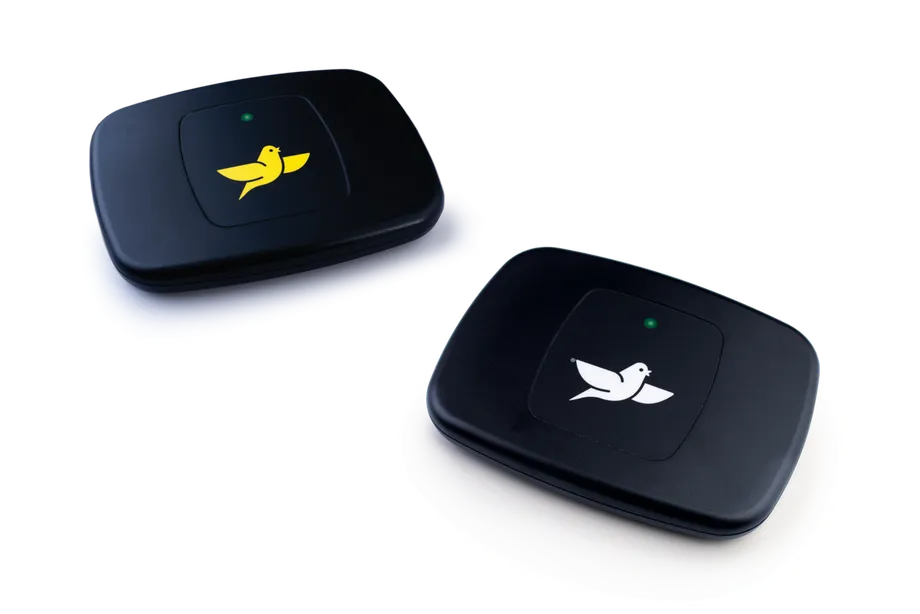
Call 844-799-8208 as soon as possible to schedule your Home Base Station setup call. Have your home Wi-Fi password available.
- Connect the USB cable to the wall adaptor plug, then connect the micro-USB end to the Home Base Station.
- Plug the Home Base Station directly into a wall outlet within 6 feet of where you sleep, so it can collect your data each night.
- Make sure Bluetooth is turned on in your phone’s settings.
- Download the Canary Medical app from your phone’s app store and log in with the mymobility username and password you already created.
- Follow the prompts in the app. Confirm you see a solid yellow light on the Home Base Station.
- Allow the app to use Bluetooth and your camera, then scan the QR code on the back of the Home Base Station.
- Write down the number shown at the top of the screen and enter it when prompted to complete the Bluetooth connection.
- Select your Wi-Fi network, enter your Wi-Fi password and select Connect.
- The light flashes yellow and then turns green. Setup is complete. It is normal for the light to cycle from yellow to green during the day.
Home Base Station help videos
Short videos from Zimmer Biomet, each under a minute and a half.
Setup reminders
Where to put your Home Base Station
Make sure nothing is blocking it
Check that the light is green
If the light is not green
Unplug it and plug it back in
Wi-Fi issues
Make sure your time zone is correct
Troubleshooting
- If the light is not yellow after plugging in, unplug the Home Base Station, check the cord connections, wait 30 seconds, then plug it back in.
- Do not select “Forget Device” for the Home Base Station in your phone settings.
- Do not exit or close the app until setup is complete.
- If your Home Base Station is broken, lost or damaged, call Smart Knee Support.
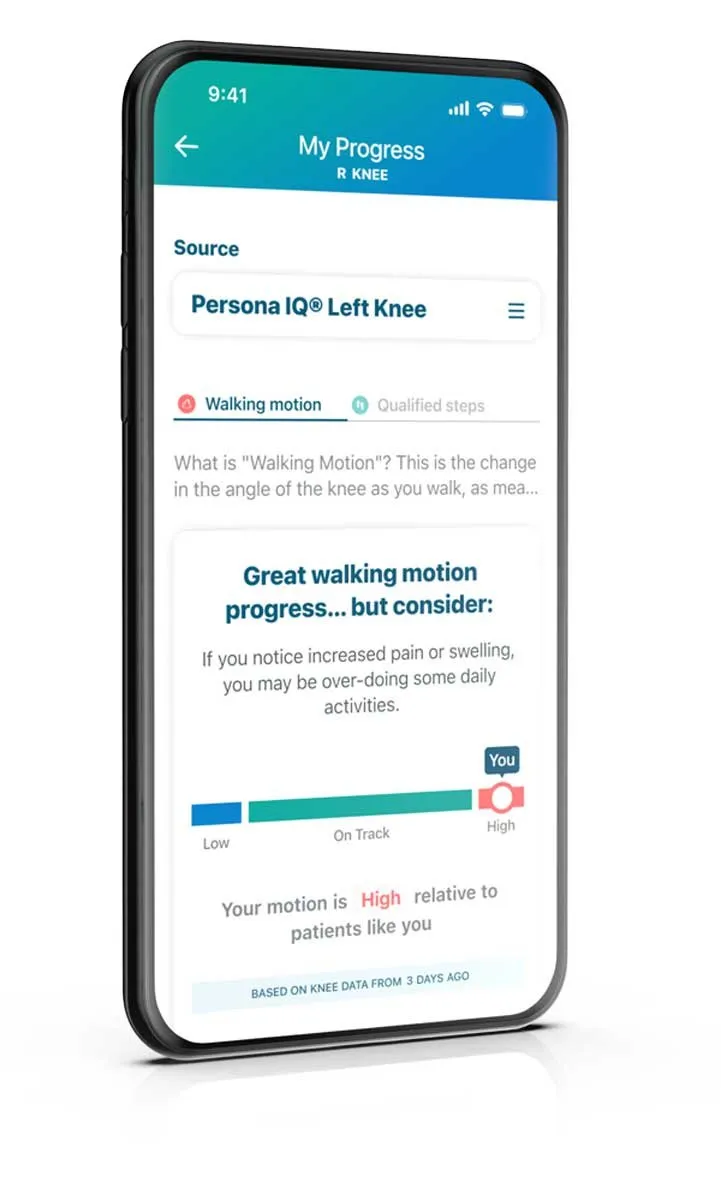
To review your recovery data once everything is set up, use the mymobility app. Zimmer Biomet Smart Knee Support: 844-799-8208 or SmartKneeSupport@zimmerbiomet.com.
More on the technology Dr. Maish offers: ROSA® robotic surgery, Persona IQ® smart knee, Persona IQ® FAQ, Why Dr. Maish uses it, mymobility® app, ZBEdge® Analytics.
Important information
Not all patients are candidates for the use of this product and surgeons should evaluate individually to determine which patients are appropriate for remote care. Patients must have Internet access and a text-capable mobile device or a compatible smartphone to use mymobility; not all smartphone app features are available with web-based version. Some patients continue to experience pain and/or limited mobility. Activity levels and restrictions will vary based on your individual condition.
The objective kinematic data generated by the CTE with CHIRP System are not intended to support clinical decision-making and have not been shown to provide any clinical benefit. Not all patients are candidates for this product and/or procedure. Only a medical professional can determine the treatment appropriate for your specific condition. Appropriate postoperative activities and restrictions will differ from patient to patient. Talk to your surgeon about whether joint replacement is right for you and the risks of the procedure, including the risk of implant wear, infection, loosening, breakage or failure, any of which could require additional surgery. For a complete list of benefit and risk information visit www.zimmerbiomet.com or call 1-800-HIP-KNEE.
ROSA®, OptimiZe™, Persona®, The Personalized Knee®, Persona IQ®, The Smart Knee®, mymobility® and ZBEdge® are trademarks of Zimmer Biomet or its affiliates. Apple Watch and iPhone are trademarks of Apple Inc. Images and videos courtesy of Zimmer Biomet. Legal manufacturers: Zimmer, Inc., Warsaw, Indiana, and Canary Medical USA LLC, Carlsbad, California.
This page is general education, not medical advice.
References
- Zimmer Biomet. Persona IQ® The Smart Knee® patient education materials (patient brochure, patient talking points, Home Base Station guide). 2025 to 2026.
- Zimmer Biomet. mymobility® Patient Care Management App Information. zimmerbiomet.com (opens in a new tab)
Ready to talk about your hip or knee?
Dr. Maish spends an hour with you and your family so that you understand your options.
Or call 301-663-9573 and ask for Michele.